Set Up Claude Desktop
Last updated: November 6, 2026
Claude Desktop can read your Lextree records and, on a key that allows it, change them. You connect it once, with a custom connector that points at your Lextree address and carries an API key. The connection is available on the Enterprise plan Enterprise , and every trial is an Enterprise trial. Only an admin can create the key.
Create an API key
- Open the Subscription page from the avatar menu.
- In the API Access section, open the Create API key panel.
- Enter a Name. It’s shown in place of a person’s name wherever the key’s activity appears, so the audit log reads “API key: " followed by this name. Pick one that says what the key is for.
- Choose a Scope: Read-only, Read and write, or Read, write and purge. The scope is fixed at creation. To change it, create a new key and revoke the old one.
- Tick Configuration only if the assistant should read and change how your subscription is set up. It works independently of the scope.
- Save the key, then copy it when it appears.
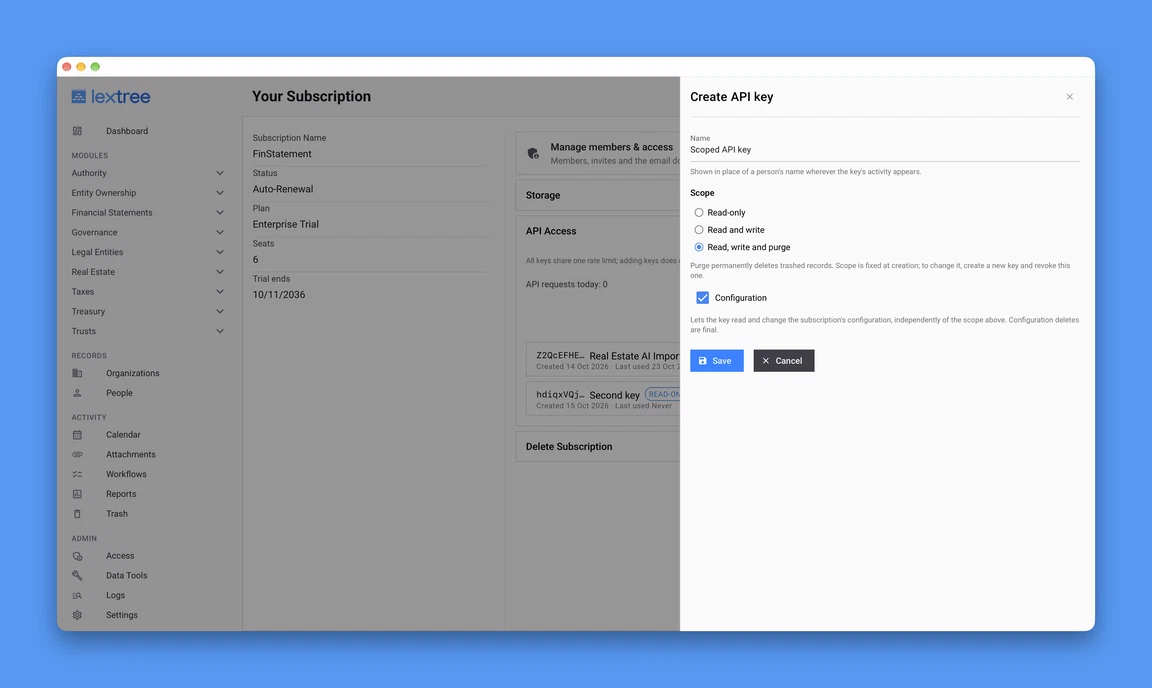
The key is shown once. You can’t retrieve it later, so store it before you leave the page. Keys don’t expire, but every key is revoked if the subscription moves to a plan without API access. Revoking a key takes effect within 30 seconds.
A key covers the whole subscription, not one person. Treat it like an admin account. API Access explains scopes and limits in more detail.
Add the connector in Claude Desktop
- In Claude Desktop, go to Settings, then Customize, then the Connectors tab.
- Click + Add and choose to add a custom connector. The Add custom connector dialog opens.
- For the name, enter
Lextree. Claude shows it in the connectors list. - For the URL, enter your Lextree address followed by
/mcp. Usehttps://us.lextree.ai/mcpfor a US subscription andhttps://eu.lextree.ai/mcpfor an EU subscription. - Click Continue.
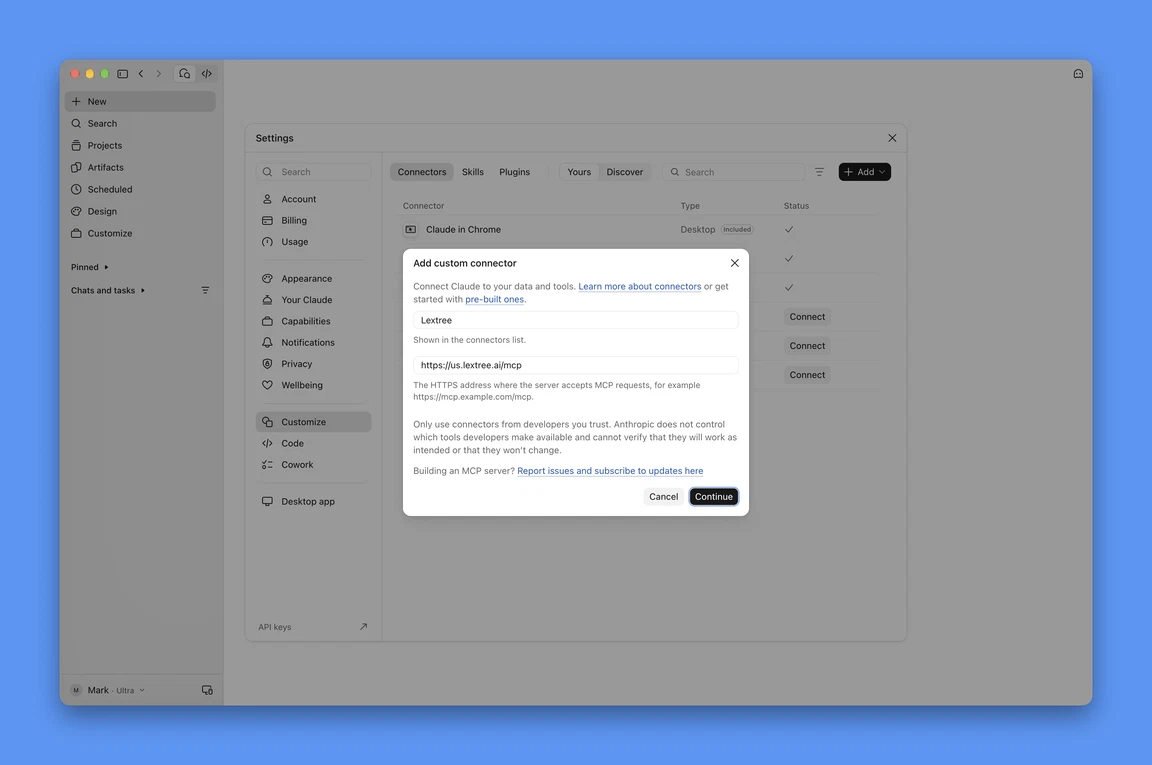
A second dialog asks how Claude signs in.
- Under Authentication, choose No sign-in. Claude Desktop selects Sign in now by default, but Lextree uses an API key rather than OAuth. The dialog describes No sign-in as the choice for servers that use an API key instead of OAuth.
- Under Request headers, choose
authorizationas the header name. - Set the value to
Bearerfollowed by your key, so it readsBearer lt_live_…with the rest of the key after it. Keep the space afterBearer. The dialog sends the value exactly as you type it. - Click Add.
Claude Desktop warns that without sign-in, anyone with the server URL can use the connector. That doesn’t apply to Lextree: the server refuses every call that lacks a valid key, so the header you add here is what lets Claude in.
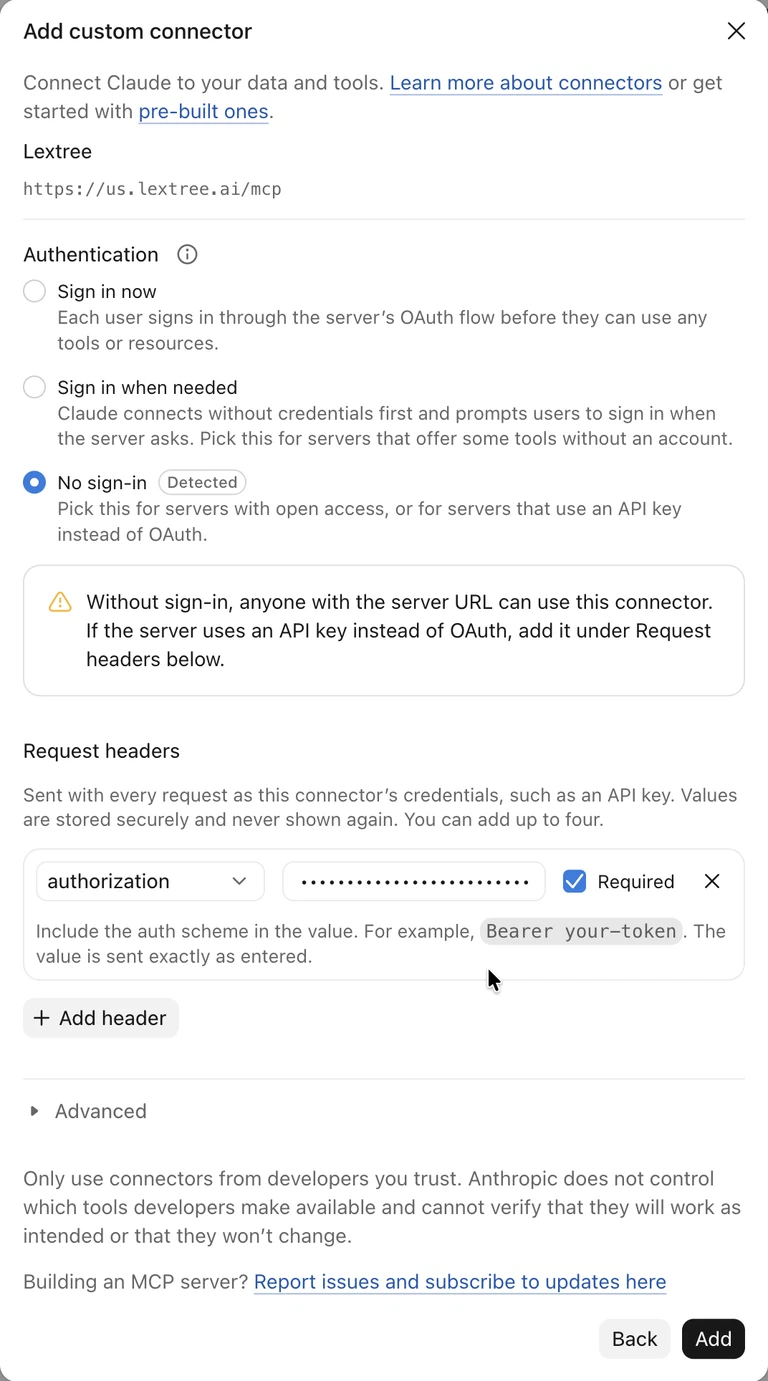
Claude stores the header value and never shows it again.
Set tool permissions
Open Settings, Customize, Connectors, then Lextree. The Tool permissions area lists two groups, read-only tools and write/delete tools. Each group has its own setting for when Claude may use those tools.
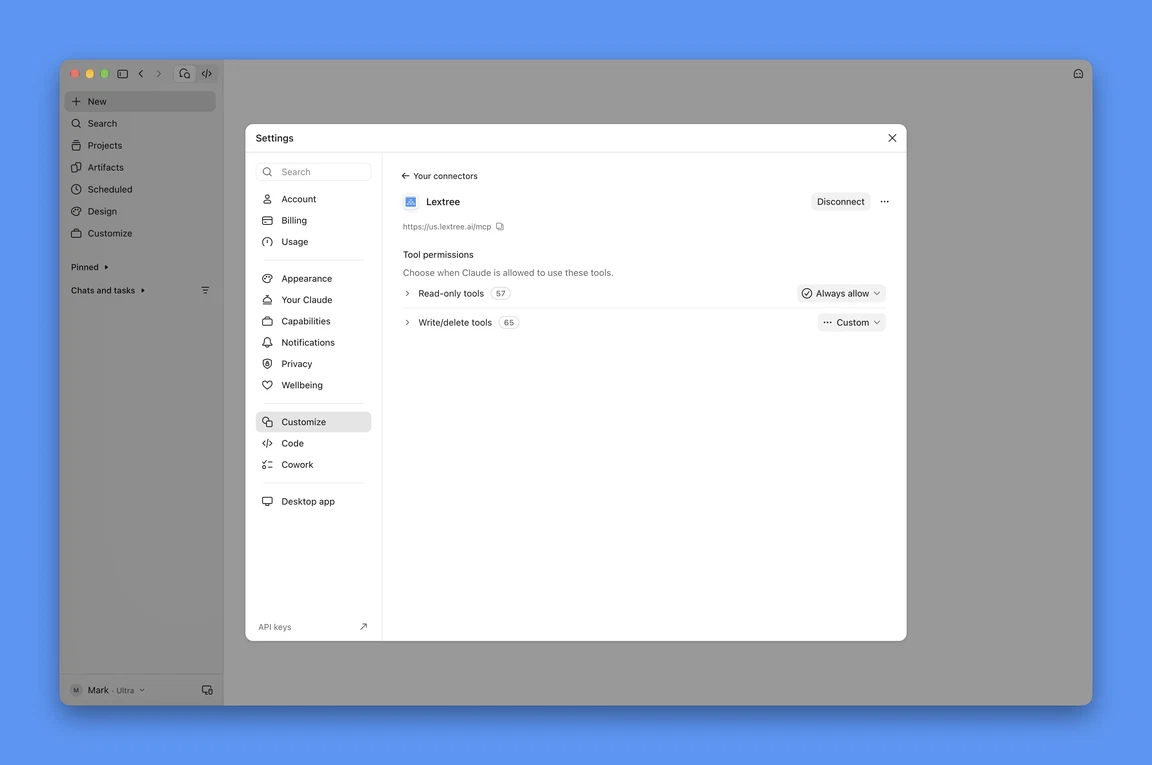
Choose the settings that fit how you work. A stricter setting on the write/delete group keeps a person in the loop before the assistant changes anything. The key’s scope still decides what’s possible: a read-only key can’t write, whatever you allow here.
Try it
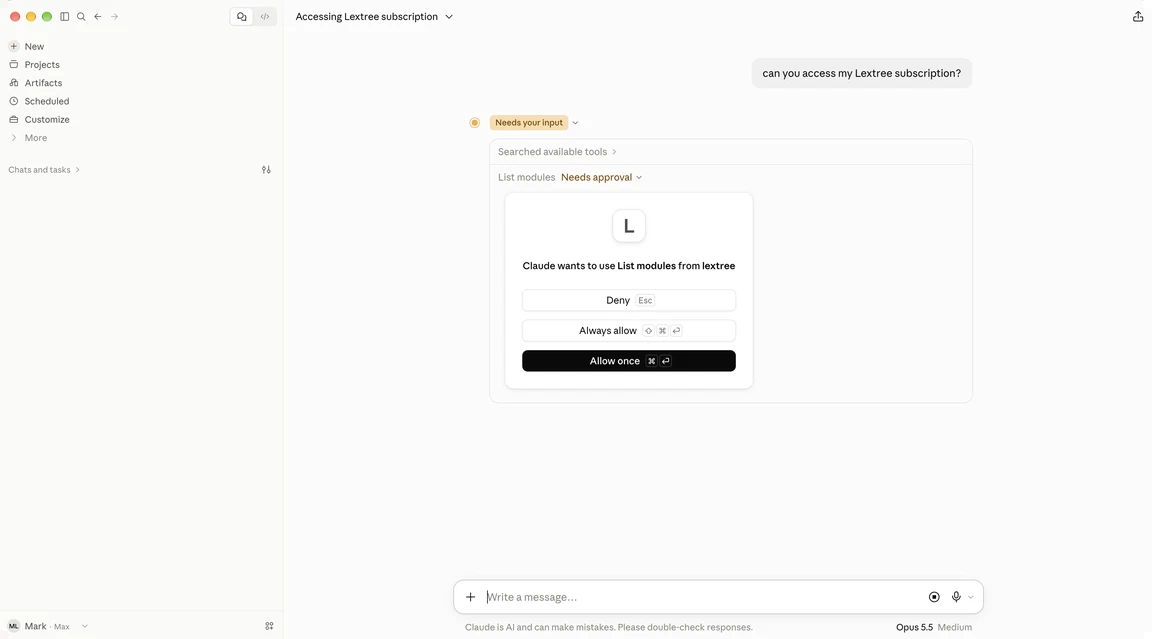
Start a new chat and ask, “Can you access my Lextree subscription?” The first time Claude uses a tool, it asks your permission with Deny, Always allow, and Allow once.
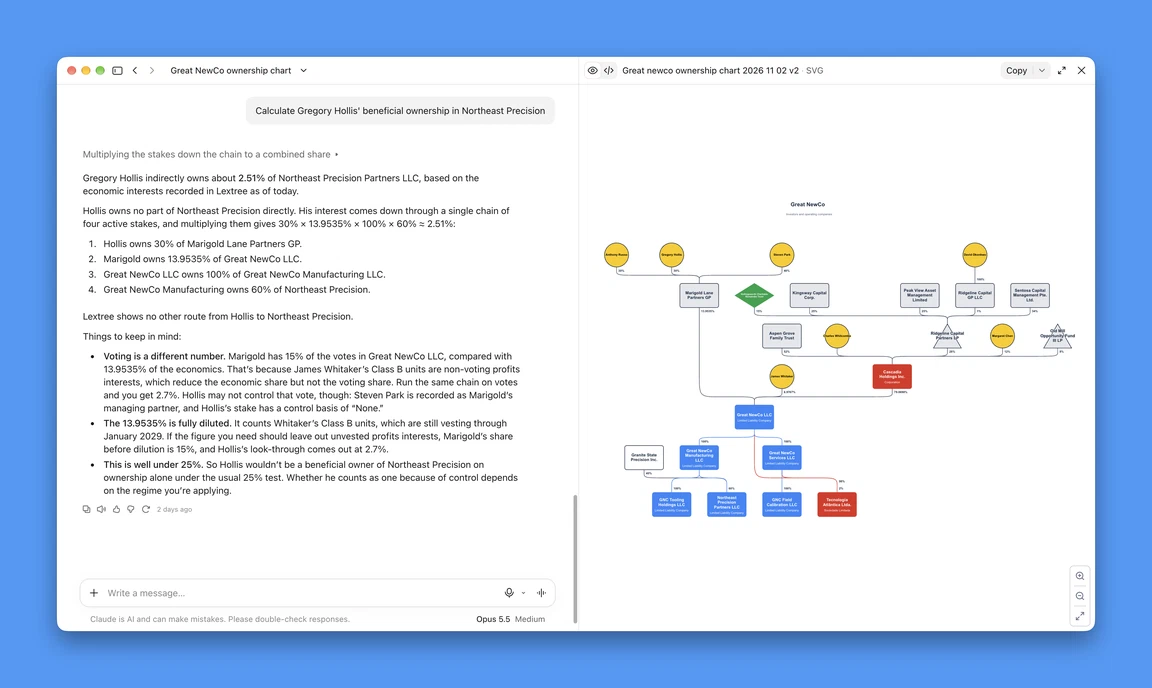
Once you’ve answered, Claude goes on to read your records and reply from them.
For what the assistant can do, see the tool reference.
Troubleshooting
- Every tool call fails with an authentication error. The key is wrong, or the header value is missing the
Bearerprefix. Claude Desktop never shows a saved header value again, so you can’t check it there. Add the connector again and type the header fresh. - An
insufficient-scopeerror. The key doesn’t have the scope that tool needs. Create a new key with it, add the connector again with the new key, and revoke the old key. - A rate-limit message, or HTTP 429. All keys on a subscription share one rate limit. Wait a moment and try again.
- A file won’t attach. A file sent through a tool call travels inside the call, and the assistant limits how much one call can carry. A large file may not fit.